
The OrgTree in OrgOrbit is more than just a digital org chart — it’s an intelligent, interactive structure designed to help you explore how people connect, contribute, and collaborate. This guide will walk you through how to navigate, organise, and visualise your team using OrgTree’s most powerful features.
How to Navigate the OrgTree in OrgOrbit


1. Navigate Through Levels
Scope: Person-specific and level-dependent
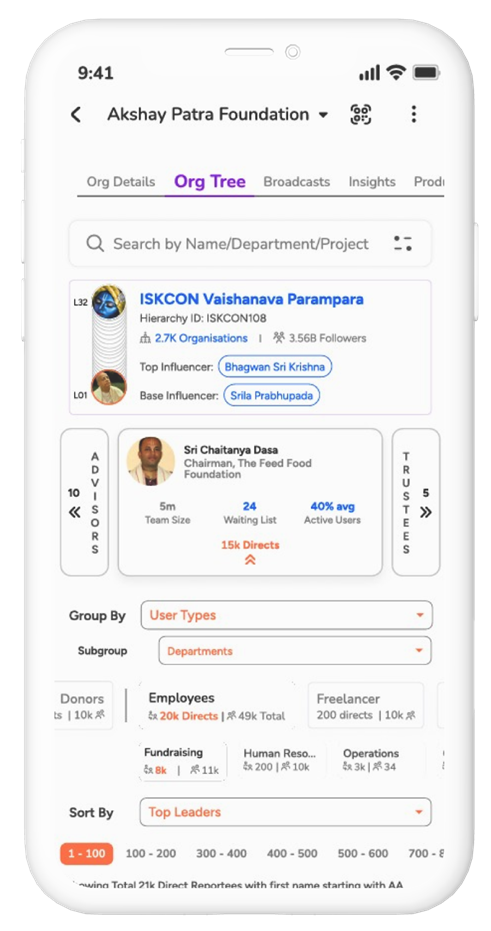
The OrgTree is built with a level-based structure, where each level represents people reporting to the one above it.
The OrgTree is built with a level-based structure, where each level represents people reporting to the one above it.
-
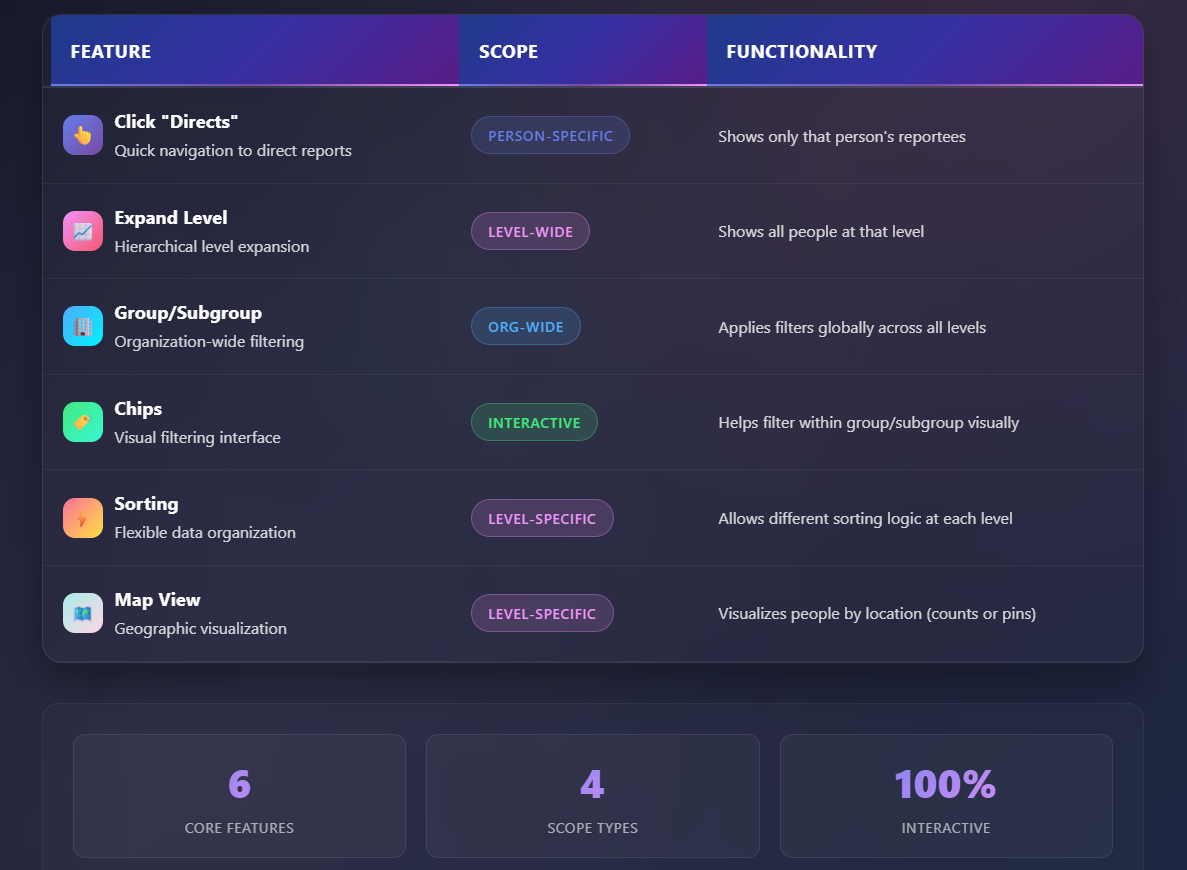
- When you click “Directs” on any person’s card, OrgOrbit will drill down to the next level and show only that person’s direct reportees.
-
- This is person-specific navigation — the result depends on which person card you clicked.
-
- If you don’t click any card and just expand the level, OrgOrbit will show everyone in that level (not filtered by any specific person).
- At the top level (the highest tier), OrgOrbit shows top leaders by default, starting with the one who has the most reportees.
This gives you full flexibility to explore any part of the organization, either deeply (by clicking through individuals) or broadly (by expanding whole levels).
2. Group and Subgroup People
Scope: Applied globally across all levels
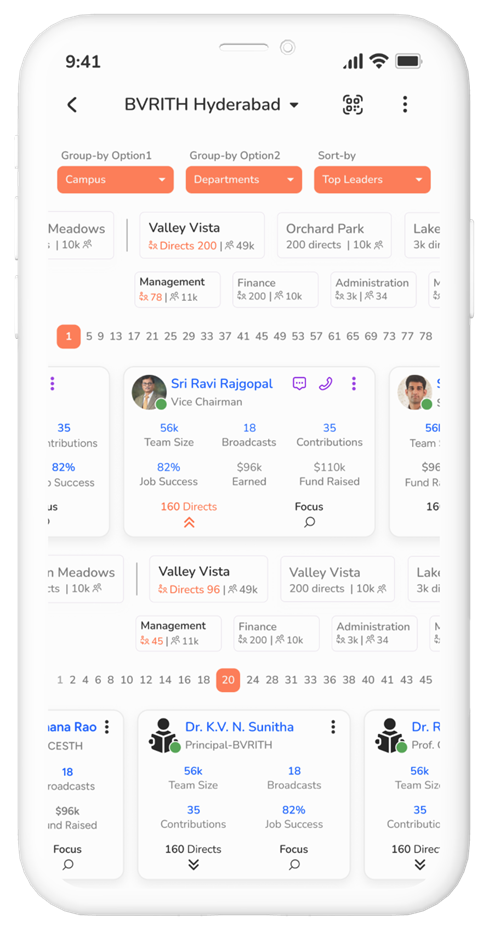
Grouping and subgrouping help you organize the cards within each level using visual clusters based on key attributes. The grouping is applied once at the top level, and then it applies to all levels below as you navigate the OrgTree.
You can group and subgroup people using combinations of:
Grouping and subgrouping help you organize the cards within each level using visual clusters based on key attributes. The grouping is applied once at the top level, and then it applies to all levels below as you navigate the OrgTree.
You can group and subgroup people using combinations of:
- User Type
- City
- Department
- Project
Examples:
- Group by City, Subgroup by Department
- Group by Department, Subgroup by City
- Group by Project, Subgroup by User Type
Once set, the Group and Subgroup filters remain active across all levels — they are not level-specific. You cannot change grouping at a deeper level without resetting it at the top.
Interactive Chips:
Once you apply a group or subgroup, filter chips appear at the top of the level. These represent the unique values within that group or subgroup. You can click on these chips to view people only within that group, and continue navigating the tree as usual within that context.
3. Sort Cards Within Levels
Scope: Local to each level — can vary across levels
Sorting determines how people are ordered within each level. Unlike grouping, sorting is level-specific, meaning you can choose a different sorting logic at every level you explore.
You can currently sort by:
- Top Leaders (based on number of reportees)
- Alphabetical Order (A–Z)
For Example:
- You can keep Level 1 sorted by Top Leaders
- While sorting Level 2 by alphabetically — all independently
We’re working on adding more sorting options soon, including role-based, recent activity, or custom rankings.
4. Use Map View to Visualize Locations
Scope: Local to each level — respects current navigation
The Map View helps you understand where people are located, either by count or exact map pins. This view is level-specific, and it adjusts based on the current level you are viewing and the navigation filters you have applied.
There are two modes:
Map with Counts:
- Shows the number of users in each location.
- Automatically respects your current group and subgroup selections.
- Helps you understand distribution patterns and team clusters at a glance.
Map with Actual Pins:
- Click on any person’s card to view the map locations of their reporters.
- Great for remote teams or planning region-specific actions.
Each level’s map view is independent, just like sorting, so you can choose whichever mode makes sense at that level.
Quick Summary
Why Use OrgTree?
The OrgTree is built for clarity, flexibility, and insight. It helps you see the real structure behind a mission-driven organization — not just reporting lines, but how people are connected, distributed, and engaged.
Whether you’re:
- Planning org growth
- Managing regional teams
- Onboarding new members
- Or exploring a community you just joined…
OrgTree makes the experience seamless, powerful, and visual.
Want help setting up your OrgTree for your organization?
Reach out to our team
Contact Us
Continue exploring more tutorials in the OrgOrbit Help Center below.